
What’s new
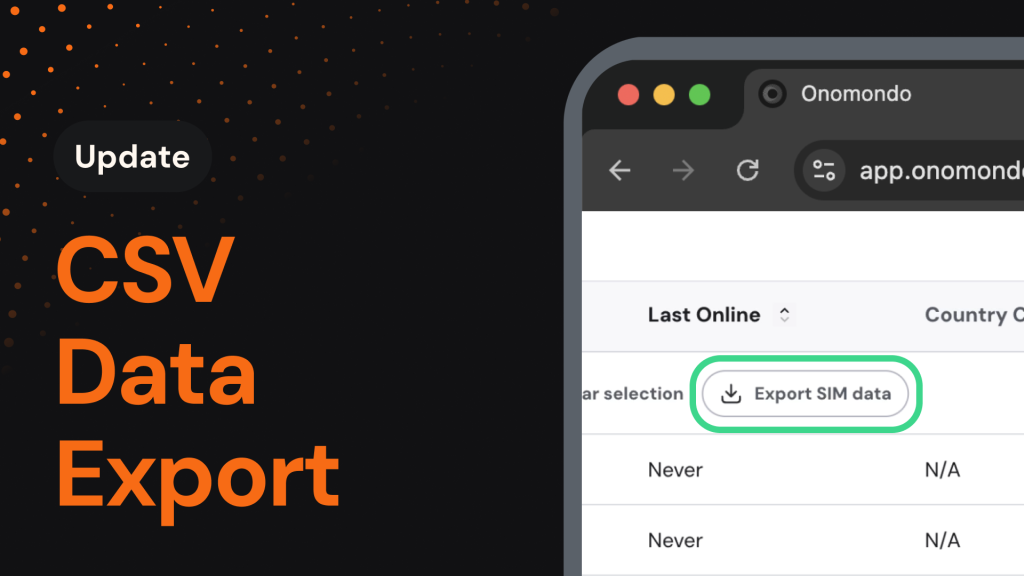
Getting your SIM data out of the Onomondo platform just got significantly simpler. No more copying rows by hand, no more support tickets to pull a list. Filter the fleet, select your SIMs, and download.
You’ll now be able to:
- Download up to 5,000 SIMs at once: Select the SIMs you want and pull them into a single CSV, ready to open in Excel, Google Sheets, or any other tool.
- Export the view you’ve built: The file reflects the filters and column customization already applied to your SIMs table, so you get the exact slice you’re looking at.
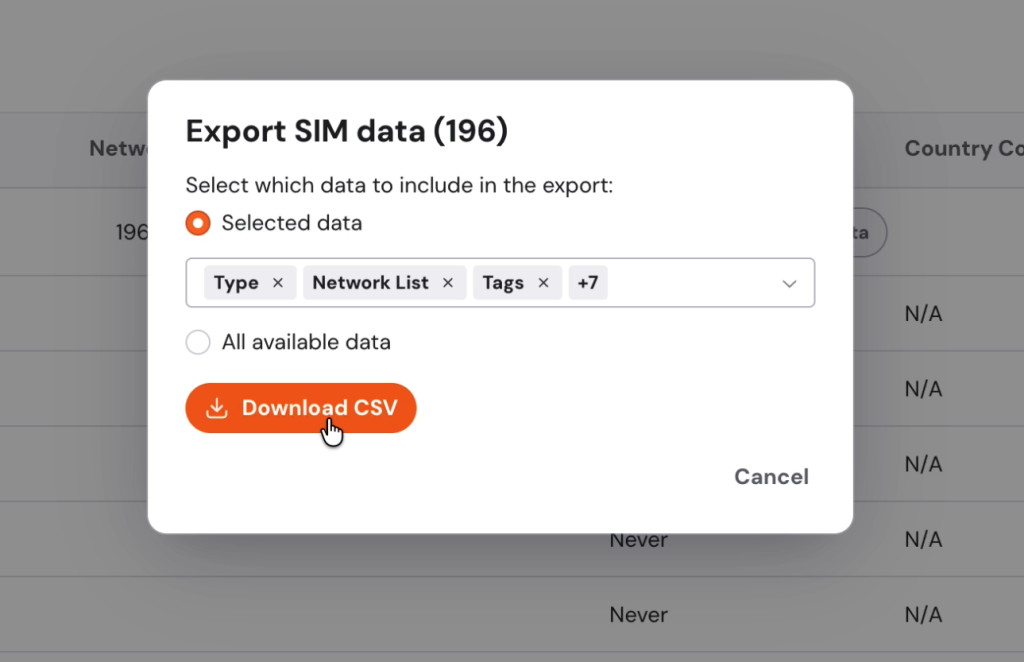
- Pull every attribute when you need it: Choose “All available data” to capture every field on the selected SIMs, including eSIM profile activation details that aren’t shown in the standard view.
Why it matters
Fleet data rarely lives only in the Onomondo platform. Teams need SIM lists in spreadsheets, BI tools, billing systems, and reports shared with internal teams or end customers. Until now, that meant copying rows manually, maintaining an API integration, or asking Customer Support for a list.
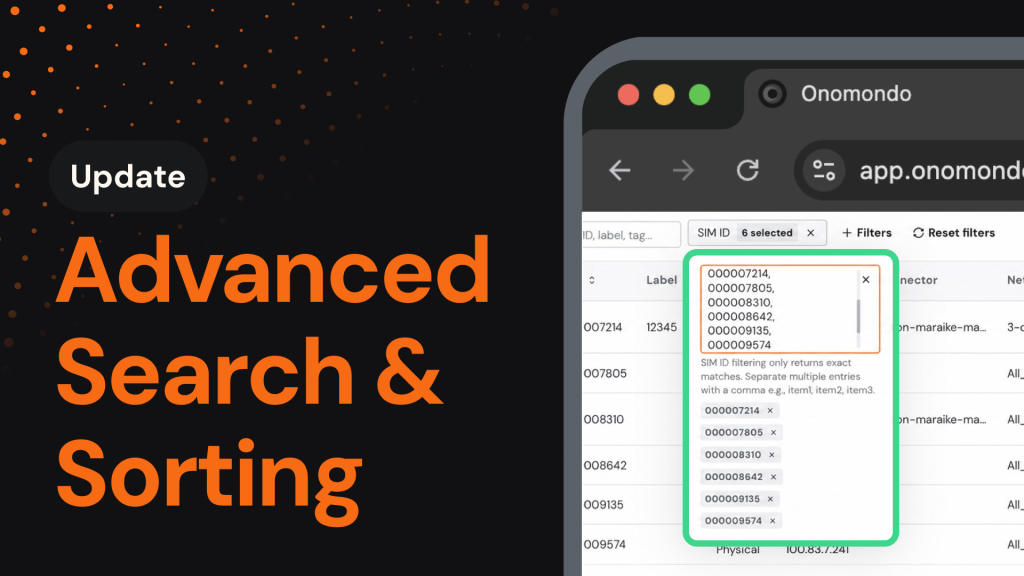
This continues the push to put fleet management directly in your hands. Alongside Custom SIM Views, Bulk Actions, and advanced search, Export means the work of finding, changing, and reporting on your fleet happens where you already are, without a ticket or a developer in the loop.
How it works
Export works directly from the SIMs table and reflects whatever you’ve set up there. Filters narrow which SIMs are included, column customization shapes what attributes appear in the file, and the export limit matches the bulk action limit at 5,000 SIMs per download. Only the SIMs you have selected are included.
The SIMs table also lets you show 20, 50, or 100 SIMs per page, making it faster to select a larger group for export.
How to get started
Exporting your SIM data takes just a few clicks:
- Open the Onomondo platform and navigate to the SIMs page.
- Apply filters and customize columns to show the SIMs and attributes you want, then select them in the table (up to 5,000).
- Click Export, choose “Columns currently shown” or “All available data,” and download the CSV.